
Automatic backup files on a schedule.
From one office to another, between servers and PCs over the network.
Why does every computer user need to create backups?

When you work on a computer, you create or edit documents, generate work reports, create diagrams, presentations, database files, store photos and home videos, and their value is usually high. All your data is stored on a hard drive, removable drive, or network drive, which, like any device, can fail at any time. A sudden failure of a storage device (hard drive, flash drive) will inevitably lead to the loss of critical files that took you a lot of time and effort to create.
In this article, I'll show you how to easily protect your files from loss, including from virus damage.
The reasons for the failure can be very different:
- Hard drive or flash drive storing files can fail suddenly, preventing the creation of backup copies of work documents. Statistically, the lifespan of modern storage media ranges from approximately 1 month to 5 years.
- File system failure can cause complete or partial destruction of documents.
- File damage caused by a virus is one of the most common causes. Even if you use up-to-date antivirus software and regularly update your antivirus databases, file damage by a virus is still possible.
- Incorrect file changes by the user. Whether intentionally or accidentally, you or your colleagues may mistakenly make changes to an important document.
- Accidental deletion of files by the user also happens quite often.
- Fire, earthquake, flood and other disasters can also destroy all your documents.
Sometimes lost files cannot be recovered at all.
How to protect files from loss?
The most reliable and effective solution is regular, scheduled, and automated file backups of the most important data. Periodic backups are necessary because files change daily, new ones are created, old ones are deleted, and backups will contain a history of file changes.
How often do you back up critical files?
Please download a 30-day demo vervion of Exiland Backup for Windows
Why is scheduled automatic file backup better than manual backups? Manual file backups require your intervention, and you can easily forget to back up your changes on time. Regular automatic backups will reliably protect your files from loss and ensure their safety.
The simple Exiland Backup utility for Windows not only allows you to create automatic backups or transfer files according to a specified schedule, but also allows you to securely copy files from one company office to another over a local network or via FTP, SFTP (SSH). This allows you to easily configure automatic copying of files from a source folder to a destination folder, even if the destination folder is located on a remote server. Furthermore, Exiland Backup offers the ability to create monthly and daily backups, as well as synchronize folders, ensuring their contents are the same.
File sync or scheduled backup – what to choose?
The difference is that when you back up, the entire history of changes to files in the source folder is saved, while in the case of synchronization, the destination folder is an exact copy of the source folder.
In other words, if a file in the source folder is corrupted, it will be copied to the destination folder during synchronization. And this is dangerous.
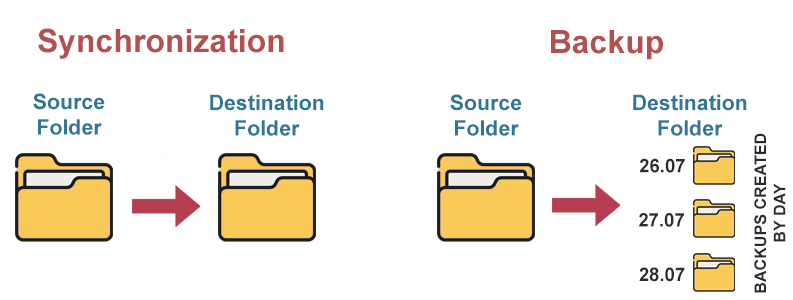
The program have a convenient step-by-step wizard for creating a task, so even a less-experienced PC user can set up automatic scheduled file copying.
When you select the Backup Type in the wizard, you can choose one of the copy types: full backup, incremental (differential) backup - copying only new and modified files or folder synchronization.
How to set up scheduled backups in Exiland Backup?
The program has a built-in scheduler that allows you to automatically run backup jobs according to a configured schedule. The start time can be configured quite flexibly, for example:
- Every hour from 8:00 AM to 5:00 PM
- Monday, Thursday, and Wednesday at 1:10 AM, and Saturday only at 7:00 PM
- Once a day at PC startup
- On connection a removable device (external disk, flash drive)
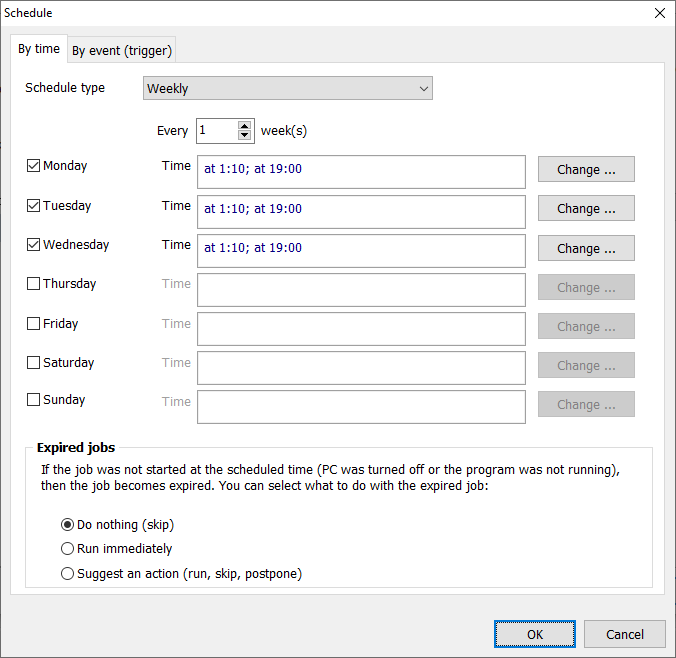
The program also allows you to run jobs manually (on demand by user). In addition, the program provides for running backup jobs as follows:
- From the Windows command line
- At PC startup
- At PC shutdown
- On connecting a removable device (flash drives, removable drives) to the USB
The program is easy to use, does not require special knowledge, and is designed for both system administrators and casual users with minimal PC experience. You can learn how to use Exiland Backup in just a few minutes. Simply install the program and create at least one backup job, scheduling automatic backups.
Exiland Backup combines a simple user-friendly interface with flexible functionality for automatic scheduled backups within a local network, a global network via FTP, SFTP (SSH), to external media (HDD, SSD, flash drive), and more. The program supports incremental and differential copying (only files that have changed compared to the previous backup), which significantly speeds up the backup process and saves space on your drive. If the connection is broken while copying files over the network, the program will wait for a connection and continue creating the backup once the connection is restored.