
How to backup files and folders on your computer?
Disk Crash: Unpleasant Moments.
If you don't make regular backups, read on
Your computer and the drive where your document files are stored (hard drive or SSD), if used for a long time, are very likely to fail, destroying all your work and home documents, valuable family photos and videos.
After all, it's electronics, and unfortunately, they can break down someday. A failure could occur suddenly after 3 months, 1 year, or 5 years, which could leave you with a ton of unplanned data recovery work. The worst thing is that family photos and work documents accumulated over the years may be lost forever.
This article will discuss the need for file backups, which is underestimated by many PC users, and how to easily protect your files from PC breakdowns, unwanted changes, drive crashes, and other threats.
Statistics show that by nature, people begin to think about backing up important files only after they have lost them at least once.
Have you ever lost data due to a PC crash or a virus? It's easy to protect your data from such problems by creating scheduled backups and storing them on a separate drive.
Regularly backup folders with frequently changing files
Even if you haven't experienced the pain of data loss, now is the time to consider backing up your folders by storing backups on any storage media separate from your PC. This could be an external drive (USB drive), a flash drive, another PC on the local network, a remote FTP or SSH server, or a Cloud.
A folder backup is a duplicate of it—a snapshot of files created at a specific point in time. If you lose a file, you can simply restore it from the backup. If you edit data frequently and back it up rarely, you won't be able to restore it to a recent state. Therefore, it's advisable to create backups frequently, at regular intervals!
You should determine the frequency of creating folder copies based on the volume of data and its importance. The more frequently you create backups, the better. However, this will require more storage disk space. It's recommended to copy documents that change daily once every 3 hours. This means, in the worst case, you'll lose changes made in the last 3 hours. It's not as bad as losing a week's worth of work.
We reduce the risk of data loss to zero!
A simple way to protect your data.
The most common causes of data loss are::
- File corruption by a virus
- Hardware failure or file system corruption on the device where your data is stored
- Accidental deletion of documents by the user
Now let's take a look the easiest way to set up regular automatic backups of a folder to another device — an external hard drive or flash drive.
Step 1: First of all, you need to estimate the source data volumes. For example, there's one directory called "Family Photos and Videos" and it takes up 20 GB.
Step 2: Now you need to decide where you want to save your backups. We don't recommend storing backups on the same PC where the source files are stored, even if it's a separate, second hard drive. This isn't reliable! It's better to create automatic backups on a separate device, such as a 64 GB flash drive. Make sure it has enough free space to store at least 2-3 backups.
Step 3: Select a tool. You can copy files manually using Windows Explorer. However, people typically remember to back up in the evening for the first few days, but by the second week, they begin to forget about it.
To significantly simplify the process of creating backups of files and folders, let's consider a simple file backup utility Exiland Backup Standard, which constantly "sits" in the notification area (System Tray, near the clock) and "silently" copies data at a frequency you specify, without interfering with the operation of other programs.
Set up a backup job in Exiland Backup just once and sleep soundly!
We'll briefly explain how to set up file backups to a folder you specify.
So, do the following:
- Download the demo version of Exiland Backup Standard.
- Install the program or use the Portable version, which does not require installation
- Plug a 64 GB flash drive into the USB port of your PC where you will save your backups
- Launch the program
- Create just one backup task. When creating it in the wizard, follow the steps, leaving all the default settings for now. Please specify:
- Source directory, for example, "D:\Family Photos and Videos"
- Folder for saving backups on a flash drive, for example, "<TRANSCEND64>:\Backups"
- Schedule. For example, once a week on Sunday at 8:00 PM
- Save your job and run it - the backup of the folder will begin.
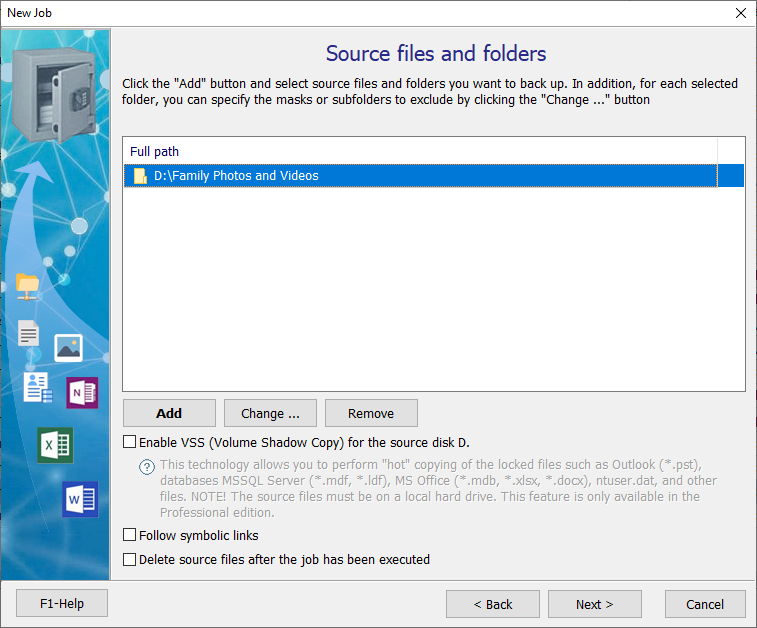
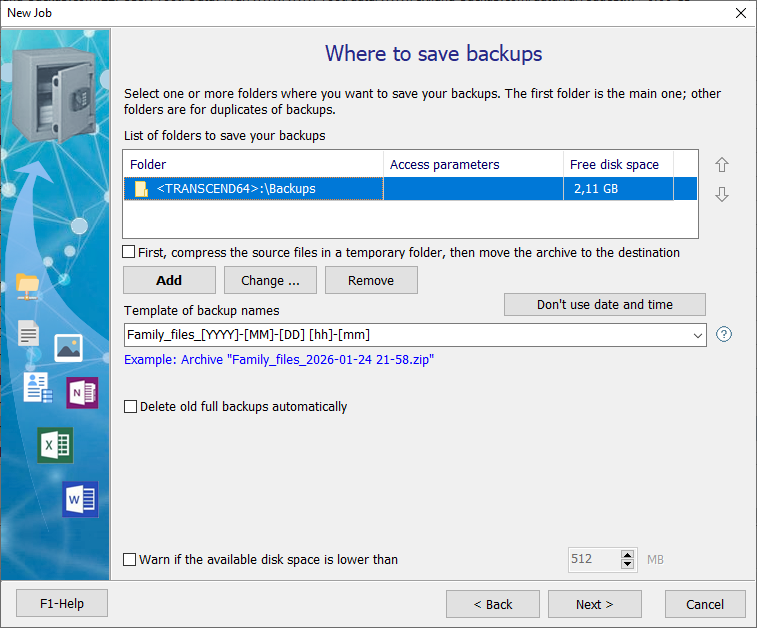
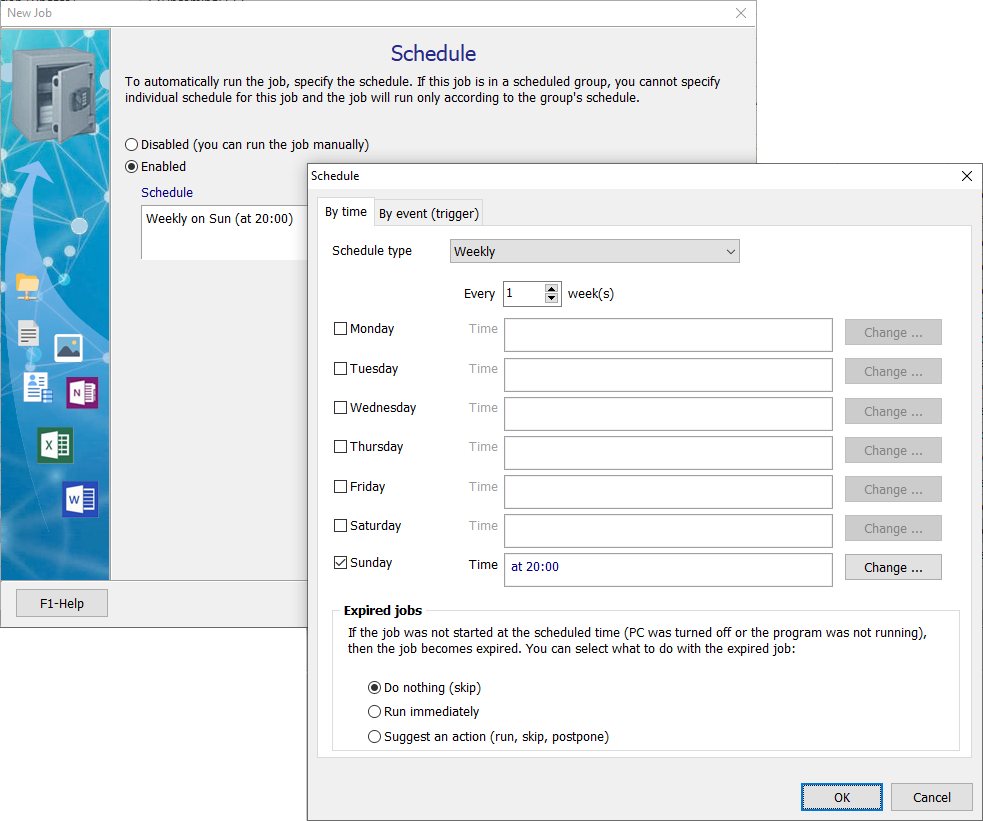
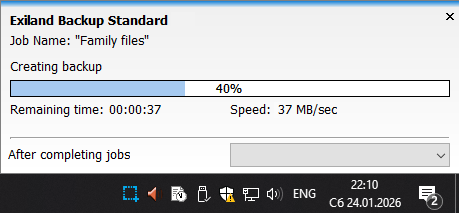
The program's result is created backup packed into a ZIP or 7-Zip archive to save disk space. You can disable file archiving and encryption in the settings, but we don't recommend doing so.
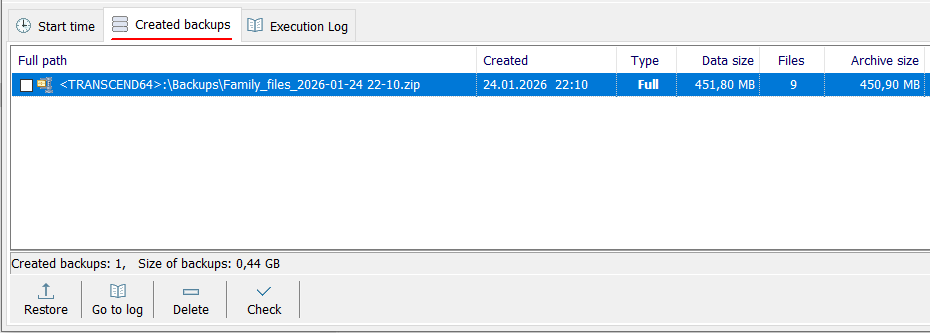
Extensive capabilities of Exiland Backup utility
We spent just 7 minutes securing your files! You'll agree that's much less time than it takes to recover lost files in the event of a device failure.
Exiland Backup is a truly simple utility with advanced functionality. It offers a variety of useful backup features, including flash drive backup, website backup (copying files from a web server to a local PC using FTP or SSH protocol), backup files to an external drive, file synchronization, and etc. The program is available in two editions, each with a different feature set.
It combines a well-designed interface, ease of use, and rich functionality. A step-by-step wizard helps you create a backup job and configure it in just a few steps. This utility works automatically — you set up the task once, minimize it to the System Tray, and you can work without any worries.
When developing new versions of the Exiland Backup utility, we took into account numerous user requests and implemented a unique technology that increases data copy speed while minimizing CPU and RAM load. Testing the program under various conditions yielded excellent results. According to users, the program copies files 15-20% faster than similar programs.